
NexFrame: AI Video Maker
Psk extraArt & Design
0.00.00 Reviews
- Version
- 1.0.0
- Installs
- 10.00K
- Age Rating
- Mature 17+
Screenshots
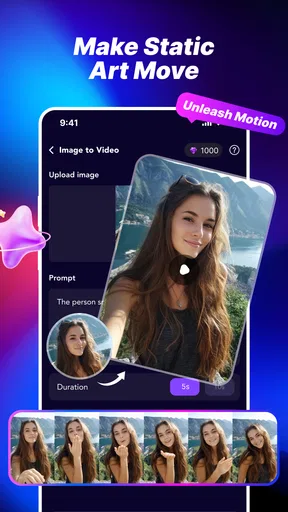
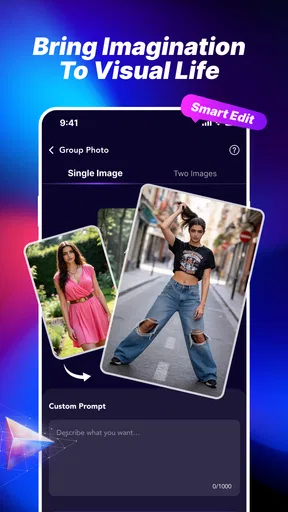
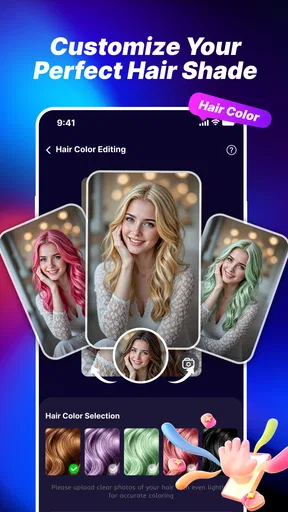
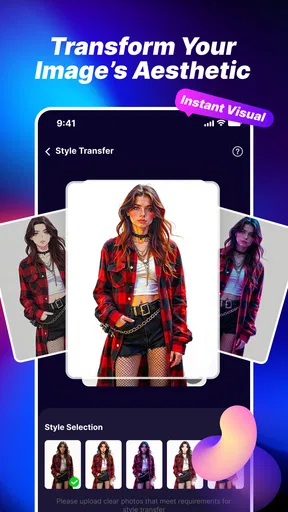
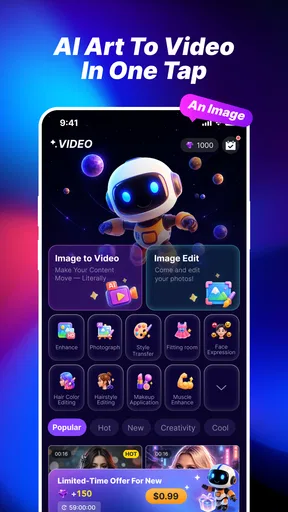
Our Review of NexFrame: AI Video Maker
 Analysis by Appyee
I tried NexFrame as a quick way to turn ordinary photos into short AI-generated videos, and my first impression was easy to understand: it aims to remove the intimidating part of creative editing. Instead of beginning with a complicated timeline, layers, keyframes, or a long list of settings, you start with an image and let the app guide you toward a finished visual. That makes it appealing when I want something shareable without spending an evening learning a full editing suite.
The app comes from Psk extra and sits in the art and design category. It is free to install, with optional purchases ranging from $1.99 to $99.99 per item. Its mature 17+ rating is worth noticing before you hand it to a younger family member. The current release is version 1.0.0, and it works on devices running Android 7.0 or later. Those details make it accessible to many older Android phones, although the actual experience will still depend heavily on the device and the complexity of the chosen creation.
What NexFrame feels like during the first week
The strongest part of the first few sessions is the speed of the basic idea. You choose a photo, explore a creative template, and see how the still image can become something with motion and atmosphere. That simple path is more inviting than opening a traditional video editor and immediately facing a blank project. I can imagine using it after a trip, at a birthday gathering, or when I have one good portrait that deserves more attention than a standard static post.
The one-tap approach is especially useful for people who care about the result but do not want to become editors. A casual user can experiment with visual treatments without first understanding frame rates, transitions, masks, or motion paths. That does not make every output perfect, but it lowers the cost of trying. In my experience, the best early use is not replacing a professional workflow; it is turning a forgotten image into a small creative moment.
The templates are important because they provide the app’s sense of direction. A blank canvas asks me to make too many decisions, while a template gives me a starting point and a mood. I would begin by testing the same photo in several styles rather than accepting the first result. That comparison is a practical way to learn which images suit the app: clear subjects, strong silhouettes, and uncluttered backgrounds are generally easier to judge than dark or visually busy pictures.
One useful habit is to keep the original photo untouched and treat every generated clip as a separate experiment. AI animation can produce a charming interpretation, but it may also emphasize details I did not intend to highlight. Working from a copy means I can try bolder templates without losing the source image or confusing the finished version with the original.
Another early lesson is that a one-tap workflow still benefits from preparation. Cropping a photo before importing it can improve the composition, particularly when the subject sits near an edge. I would also avoid choosing a picture with several competing focal points if the goal is a clean, understandable animation. The app may make the process feel automatic, but the quality of the input remains part of the creative decision.
For a realistic everyday scenario, imagine taking a photo of a friend’s handmade cake before everyone starts eating. A conventional editor would let me assemble a polished slideshow, but that may be excessive for a single social post. NexFrame gives me a quicker route: I can test a template, create a short visual from the cake photo, and decide whether the result feels more memorable than the original. That is the kind of small task where its convenience makes sense.
The first-week appeal also comes from curiosity. Each template invites a question: how will this particular image move, and will the effect make the subject more interesting or merely more decorated? That curiosity can carry the app through several sessions. It is a genuine strength, but it is also the beginning of the main long-term question. Once I have tested the styles that suit my photos, will I still have a reason to return?
Where it beats a usual mobile editor
Compared with a standard video editor, NexFrame is better when I want a quick transformation rather than precise control. Traditional tools are stronger for arranging multiple clips, timing music, correcting a sequence, and making deliberate edits. They reward patience. NexFrame is more attractive when the source material is a single photo and the desired outcome is a creative video treatment rather than a carefully constructed production.
It also differs from a normal slideshow maker. A slideshow usually depends on several images and predictable transitions, while this app focuses on giving an individual photo a more animated identity. That distinction matters for users who have one standout picture instead of a complete album. If I am building a family recap or a product presentation with many scenes, I would still choose a conventional editor because its structure is more suitable.
Against manual image animation, the trade-off is even clearer. Manual work can produce a result that matches my exact intention, but it requires more time and technical confidence. NexFrame exchanges that control for immediacy. Its real advantage is not maximum editing power; it is reducing the distance between a photo and a shareable experiment.
Who gets the most from the free starting point
The free entry makes sense for curious creators, casual social users, and people who want to test AI video ideas before committing to a more demanding tool. It is also a reasonable option for someone who rarely edits and would rather have a guided process than a professional interface. The app’s broad operating-system support may help users with older Android hardware get started, although I would keep expectations realistic about speed and smoothness on less capable devices.
That does not mean the free experience will suit everyone equally. Anyone who needs exact timing, repeatable motion, advanced audio work, or a carefully branded visual system should look elsewhere. A designer producing client material needs control and consistency more than novelty. A frequent creator may also find that template-led output begins to feel familiar after the initial experimentation.
Whether it earns a place beyond the novelty phase
I’d judge whether NexFrame deserves a lasting spot by the kinds of photos I actually make, not by how surprising the first animated result feels. A useful test is to revisit it for a real occasion—such as a family update or a simple announcement—and see whether its templates help communicate the moment more clearly. If they do, it has a practical role; if they only add novelty, I’d keep a conventional editor close at hand.
Month-to-month value depends on your photo routine
The lasting value is tied less to daily use than to how often I encounter photos that benefit from animation. If I regularly make invitations, announcements, memory posts, or small promotional visuals, the app can become a convenient part of that routine. I can imagine opening it whenever a single image needs more energy but does not justify a full editing project.
For occasional users, the value is more episodic. A holiday, a personal milestone, or a creative challenge may provide a reason to return after several quiet weeks. That is not a weakness by itself. Some apps earn their place by being useful at the right moment rather than demanding constant attention. NexFrame seems better suited to that kind of recurring, event-driven use than to a rigid daily publishing schedule.
To make the app last, I would create a small personal workflow instead of opening it randomly. I might keep a folder of photos that are visually simple, another for images that need cropping, and a third for ideas worth revisiting. This turns the app from a novelty button into a tool with a queue of possible projects. It also prevents the common problem of opening a creative app without knowing what to make, testing one template, and leaving without a useful result.
A second practical workflow is to compare outputs by purpose rather than by visual excitement. One template may look impressive in isolation but make a poor announcement because the subject becomes hard to read. Another may be less dramatic yet work better for a birthday message or a product image. I would judge each result by whether it communicates something clearly, not simply by whether it contains more movement.
The optional purchase structure changes the month-to-month calculation. Since individual purchases can range from $1.99 to $99.99, I would avoid treating every attractive option as an automatic upgrade. Before spending, I would ask whether a particular purchase solves a recurring need or merely satisfies the excitement of the current session. A small, occasional expense may be reasonable for a personal project, while a high-priced item deserves much more scrutiny from anyone who only uses the app a few times.
Because the app is at version 1.0.0, I would also approach it as an early-stage creative tool rather than a mature replacement for established editing software. That does not make it unusable; it simply affects how much responsibility I would place on it. For informal content, experimentation is part of the fun. For important work, I would keep the original photo and maintain an alternative editing route until I am satisfied with the result.
The maintenance burden is low, but the creative burden remains
There is no complicated project structure to maintain when the main task is selecting a photo and applying a template. That simplicity is a relief. I do not need to organize a large timeline just to produce a small animated post. The maintenance challenge is instead about keeping my expectations and files organized: saving originals, labeling versions, and remembering which treatment worked for which type of image.
I would not rely on memory alone after producing several variations. A simple naming habit can help: identify the subject and the style in the file name, then keep the preferred version separate from experiments. This is a small detail, but it matters when an AI-generated clip looks similar to another one later. Without that discipline, the convenience of quick creation can turn into a messy collection of near-duplicates.
There is also a human maintenance cost. If I use the same visual treatment repeatedly, the results may begin to feel interchangeable. The answer is not to chase every new effect. It is to rotate templates according to the subject and purpose, while accepting that some photos are better left still. A mature creative habit includes knowing when not to animate an image.
That last point is important. Motion is not automatically an improvement. A quiet landscape, a carefully composed meal, or a portrait with a strong expression may already communicate effectively. If the animation distracts from the reason I liked the photo, I would return to the original or use a restrained alternative. NexFrame is most useful when movement adds context, mood, or attention—not when it is applied simply because the tool can do it.
What may cause fatigue after repeated use
The first source of fatigue is the template ceiling. Guided creativity is welcoming at the beginning, but it can become limiting when I have a specific idea that does not fit the available structure. I may know exactly how I want a subject to move or how long a visual beat should last, yet a one-tap system may not give me the controls to make that intention precise. At that point, a timeline-based editor becomes the better choice.
The second source is unpredictability. AI-assisted motion can be engaging because it interprets a still image, but interpretation also means the result may not match my mental picture. That is acceptable for playful content and less comfortable for a professional deliverable. I would plan for a review step every time, especially when the photo contains faces, text, hands, or small details that I want viewers to read correctly.
A third issue is the gap between making a video and finishing a communication. A visually interesting clip may still need a caption, a clear message, or a different format for the platform where I plan to share it. NexFrame addresses the transformation of the image, not the entire publishing strategy. Users who expect one tap to handle every part of content creation may feel disappointed.
There is also the possibility of spending more time browsing than creating. Templates can turn selection into its own distraction, especially when several options look promising. I would set a simple limit: choose a small group, test them on the same photo, and stop when one clearly serves the purpose. That keeps exploration from replacing the actual task.
The mature age rating should be treated as a practical consideration rather than a footnote. I would check the app’s suitability before allowing a teenager to use it, particularly if the device is shared or the app is being introduced in a family setting. The rating does not change the creative workflow, but it does affect who I would recommend it to without supervision.
Who should skip it, and who should keep it installed
I would skip NexFrame if my main goal were professional post-production, detailed motion design, or a consistent commercial identity. In those situations, control is more valuable than speed, and a conventional editor offers a clearer path from intention to result. I would also skip it if I dislike AI-generated interpretations of personal images or if I need every visual decision to be predictable.
I would keep it installed if I often have one photo that needs a little more life, enjoy trying visual ideas without a steep learning curve, or want a fast option for informal posts. It is particularly suitable for someone who sees editing as a creative prompt rather than a technical assignment. The app can help me discover possibilities I might not have considered, even when I ultimately choose not to use the first generated version.
My recommendation is to start with a few meaningful photos rather than a large batch. Use one image with a clear subject, test several templates, and judge whether the movement supports the subject. If the results repeatedly feel useful, the app may fit naturally into your routine. If the appeal is only the surprise of the first few experiments, there is no reason to force a long-term habit.
My long-term verdict
NexFrame succeeds as a low-friction bridge between still photography and short AI video. I like that it makes experimentation approachable and that its template-based process can turn a single image into something more expressive without demanding advanced editing knowledge. For casual creators, that is a meaningful benefit, not just a flashy feature.
Its lasting value is narrower than its first impression. The app earns recurring space when I have a steady stream of suitable photos and a clear reason to animate them. It loses ground when I need detailed control, consistent professional output, or a workflow built around many clips and precise timing. The optional purchases, especially the wide range between the smallest and largest listed items, also make restraint important.
After the novelty fades, I would keep it as a specialist tool rather than my only video editor. I would open it for quick visual ideas, personal moments, and single-image projects, while turning to a traditional editor when the work requires structure and precision. My honest recommendation is to treat NexFrame as a convenient creative side tool: easy to revisit when the right photo appears, but not powerful enough to replace a complete editing workflow.
Verdict
Strengths of NexFrame: AI Video Maker
- Turns simple prompts into polished short videos quickly.
- Offers ready-made templates for social media content.
- AI-assisted editing reduces the need for video experience.
- Supports fast experimentation with different visual styles.
- Useful for creators producing frequent promotional clips.
Limitations of NexFrame: AI Video Maker
- AI results can vary noticeably between prompts.
- Some advanced tools may require a paid subscription.
- Export options may be limited on the free plan.
- Generated visuals may need manual corrections before publishing.
- Video processing can take longer for complex projects.
Similar Picks in This Category
View All
Canva: AI Photo & Video Editor
Canva4.8

PENUP – Drawing-sharing SNS
Samsung Electronics Co., Ltd.4.5

Crafto
Kutumb App4.6

Sketchbook
Sketchbook4.1

ibis Paint X
ibis inc.4.5

Adobe Express: AI Photo, Video
Adobe4.6
Frequently Asked Questions
What is NexFrame: AI Video Maker, and what can I use it for?
NexFrame: AI Video Maker is designed to help users create short videos with the assistance of artificial intelligence. It can be useful for social media posts, promotional clips, visual stories, presentations, and other quick content projects. Instead of editing every element manually, you generally provide an idea, text, images, or other media and let the app help organize the result into a more polished video.
Do I need video-editing experience to use NexFrame: AI Video Maker?
No advanced editing experience is normally required. The app is aimed at users who want to produce content more quickly through guided tools, templates, automated effects, and AI-assisted creation. Beginners can start with a simple prompt or imported media, while more experienced creators may appreciate the ability to adjust scenes, text, music, timing, and visual details after the initial video has been generated.
Is NexFrame: AI Video Maker free to download and use?
The application may be available to download without an upfront charge, but some features can depend on the current subscription model, in-app purchases, or usage limits. AI generation, premium templates, enhanced exports, watermark removal, or higher-quality output may not be included in the basic version. Before creating a large project, check the app’s store listing and payment screen carefully so you understand what is free and what requires payment.
Can I use my own photos, videos, music, or written scripts in NexFrame?
NexFrame is intended to support a personalized workflow, so users may be able to combine their own media with AI-generated elements and editing tools. However, supported file types, upload limits, audio options, and available export settings can vary by device and app version. You should also make sure that you own or have permission to use any images, video clips, music, logos, or scripts added to a project.
Are videos created with NexFrame suitable for publishing on social media?
NexFrame can be useful for creating content intended for platforms such as TikTok, Instagram, YouTube, Facebook, and similar services, particularly when you need short, visually engaging videos. Before publishing, review the final export for incorrect AI-generated text, awkward transitions, pronunciation issues, duplicated scenes, or unsuitable music. Also confirm the aspect ratio, resolution, watermark conditions, and commercial-use rights if the video represents a business or paid campaign.
